Documentation
When you download and install VisualGatewayEditor from the link to the right, a shortcut to the program is provided on your start menu. Launch the program using the link
After startup you will be prompted to select which network interface card (NIC) to use if you have a computer with more than one
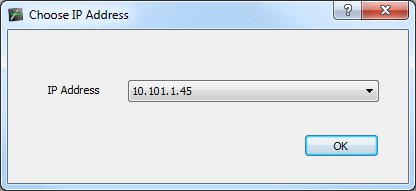
Select the IP to use from the dropdown and press "OK"
Once the main application has started, you can add or edit gateways using the "Add", "Edit" and "Remove" buttons
To add a gateway, click on the Add button, or edit an existing gateway by clicking to select and pressing "Edit". You will be prompted for some details:
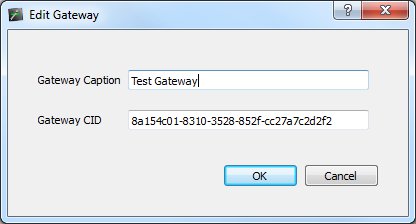
The Gateway Caption field is what is displayed on screen next to the gateway - note that the caption is not sent to or stored by the gateway
The Gateway CID is the unique identifier of a gateway. You can determine this in a number of ways, by using SLPTool or ETC's Gateway Configuration Editor tool.
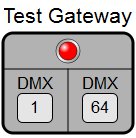
Once you have added your gateways, the LED indicator on the gateway will show the status of the gateway. Red indicates offline, green indicates online
 |
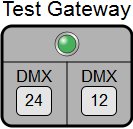 |
| Offline | Online |
For Online gateways, you can change the universe assignment by dragging and dropping a universe from the universe pane on the left, onto the port of the gateway